Chat link without context
- —The WhatsApp entry point is buried in page content
- —Visitors start a chat without knowing what to write
- —The mobile contact path competes with unrelated actions
Use the WhatsApp Chat action when the site's intended mobile next step is a conversation rather than a generic contact page. ButtonFlow keeps one site-wide invitation on included pages and opens the configured wa.me destination with an optional message ready to edit.
A WhatsApp CTA is most useful when the visitor knows what will happen after the tap. ButtonFlow provides the mobile entry point, the international number supplies the destination, and an optional message gives the conversation context.
The pre-filled message is optional and site-wide. Keep it short, editable, and relevant across every included page so the visitor gets a useful first line without being forced into a script.
Action: WhatsApp Chat. Number: +12025550147. Message: Hi, I have a question about your services.
Action: WhatsApp Chat. Number: +12025550147. Message: Hi, I would like to ask about appointment availability.
Action: WhatsApp Chat. Number: +12025550147. Message: Hi, I would like more information about this property.
Leave the optional message empty when visitors should start the conversation in their own words. The WhatsApp number still needs to be entered in international format.
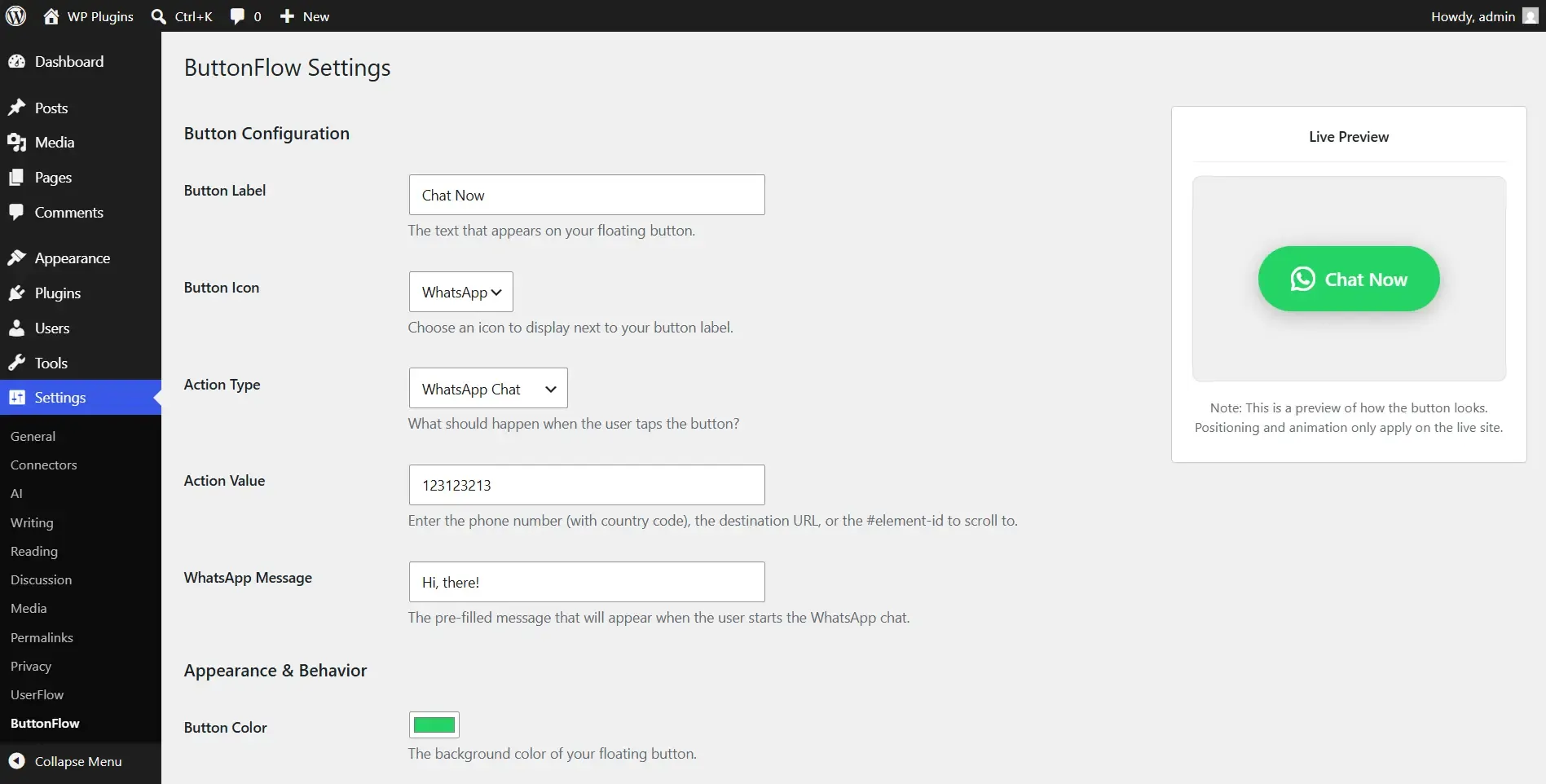
Open Settings → ButtonFlow and choose WhatsApp Chat. Enter the business number in international format, then add a pre-filled message only if it helps the visitor explain why they are contacting the business. The number is the destination; the message is supporting context.
When the visitor taps the mobile CTA, ButtonFlow opens the corresponding wa.me destination. Keep the phone value consistent with the business's approved WhatsApp number and test the handoff on a device with the expected WhatsApp behavior.
ButtonFlow v1.2.0 shows the control at the <=767px boundary. Use the label, icon, colors, Small, Medium, or Large size choice, and show delay to make the invitation visible without turning it into a second navigation system.
Choose one message pattern for the site-wide configuration, then verify the destination and display rules across the included pages.
Install ButtonFlow from the WordPress plugin directory and activate it on the site.
Go to Settings → ButtonFlow and choose WhatsApp Chat as the action type.
Add the business WhatsApp number in international format and decide whether the site-wide CTA needs an optional pre-filled message.
Set the label, icon, colors, Small, Medium, or Large size, and show delay. Make the label describe a chat rather than a phone call.
Save and test at the <=767px boundary. Add page IDs or slugs to the exclusion controls when a page should not invite a WhatsApp conversation.
A WhatsApp CTA should be easy to inspect before it is easy to tap.
Compare the international number in Settings → ButtonFlow with the business number that owns the WhatsApp conversation.
Open the CTA on a mobile viewport and confirm the optional pre-filled message is short, accurate, and still editable before sending.
Resize above and below 767px, then visit one included and one excluded page to confirm ButtonFlow's page IDs and slugs are doing what the site needs.
No. The message is optional. You can leave it empty so visitors begin in their own words, or add a short prompt that gives the enquiry context.
Enter the number in international format in Settings → ButtonFlow. WhatsApp Chat uses that value for the wa.me destination.
The WhatsApp Chat action opens the configured wa.me destination, with the optional pre-filled message available as the conversation starts.
No. ButtonFlow v1.2.0 is mobile-only and shows the CTA at the <=767px boundary.
Yes. Add the WordPress page IDs or slugs that should be excluded in ButtonFlow's page exclusion controls, then verify an included and excluded page.
Review the plugin features, requirements, and other implementation guides, or install it directly from WordPress.org.