Phone number hidden in context
- —Visitors search the header or footer for the number
- —The visible phone text is easy to miss on a long page
- —The mobile next step competes with unrelated links
This guide is for one specific handoff: a visitor taps the mobile CTA and their device follows a tel link to the business phone line. Keep the number, label, and display boundary clear so the button does not compete with other contact paths.
A click-to-call button works when its only job is to open the business line. ButtonFlow supplies that focused mobile handoff while the page keeps its full contact details for visitors who need more context.
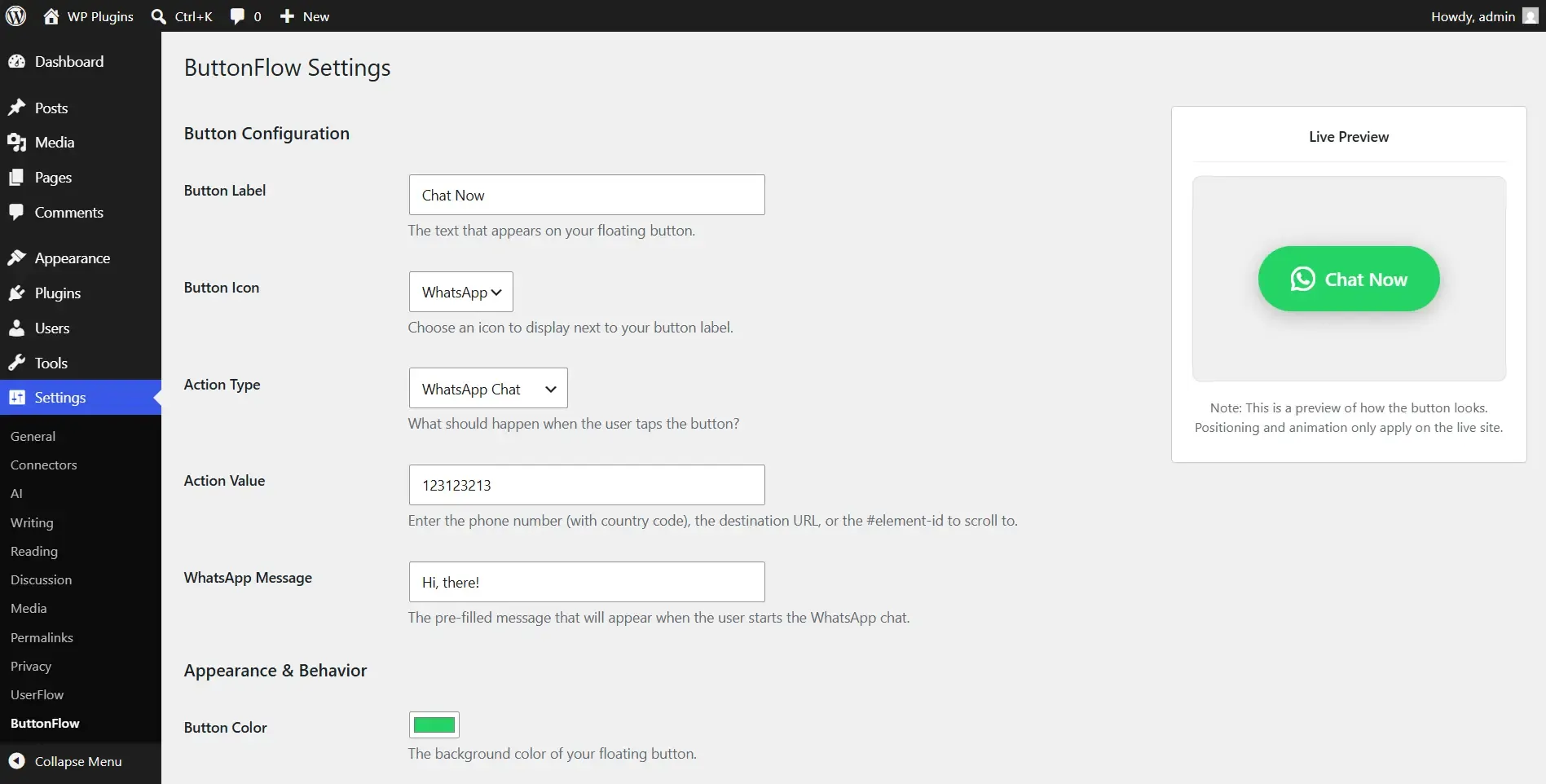
In Settings → ButtonFlow, choose the Phone Call action and enter the business number in international format. For example, +12025550147 is an explicit value that can be checked before publishing; do not rely on a local-only number that changes meaning across regions.
ButtonFlow uses the configured value for a tel link. The label can explain the action, while the icon, colors, Small, Medium, or Large size choice, and show delay control how the button appears. Those presentation choices should support the phone action rather than introduce a second destination.
The button is mobile-only at the <=767px boundary. If a page already has a prominent desktop contact treatment, leave it in place and use ButtonFlow for the smaller-screen call handoff.
These are variations of one site-wide Phone Call configuration. The phone value is always the call destination, and page exclusions control where the CTA does not appear.
Action: Phone Call. Phone value: +12025550147. Label: Call the office. ButtonFlow follows tel:+12025550147 after the tap.
Keep Action set to Phone Call, use the label Call now, choose Small, and set the icon and colors to match the existing mobile palette.
Keep the same Phone Call value, use the label Speak with our team, choose Medium or Large, and verify the text remains clear at a 320px-wide viewport.
Keep Phone Call enabled site-wide, then add the WordPress IDs or slugs for pages where a direct call is not the right action to ButtonFlow's page exclusions.
A short verification loop catches formatting mistakes before a visitor tries to call from a phone.
Install ButtonFlow from the WordPress plugin directory and activate it on the site.
Go to Settings → ButtonFlow and select Phone Call as the action type.
Add the business phone value in international format, then confirm the number against the site's published contact details.
Choose the label, icon, colors, Small, Medium, or Large size, and show delay. Keep the label specific to calling.
Save, test the tel link at the <=767px boundary, and add page IDs or slugs to the exclusion list where the call CTA should not appear.
A call CTA is ready when the destination and display rule are both easy to confirm.
Compare the international value in Settings → ButtonFlow with the number the business has approved for incoming calls.
At a mobile viewport, tap the button and confirm the device receives a tel link for the configured number.
Resize above and below 767px, then visit one included and one excluded page to confirm the visibility rule.
Yes. The Phone Call action uses the configured international phone value for a tel link, so tapping the mobile CTA hands the number to the device's calling behavior.
Enter the business number in international format in Settings → ButtonFlow. Confirm the value against the number the business has approved before publishing.
No. ButtonFlow v1.2.0 is mobile-only and shows the CTA at the <=767px boundary.
Yes. Configure the label, icon, colors, Small, Medium, or Large size choice, and show delay in ButtonFlow's settings.
Yes. Use ButtonFlow's page exclusion controls with WordPress page IDs or slugs, then test both excluded and included pages.
Review the plugin features, requirements, and other implementation guides, or install it directly from WordPress.org.